Close or reopen a signup
Once your signup is published, you can close it when you have enough people, or when it's too late to sign up. You can also close it to pause sign-ups for a while. Nobody new can sign up, and you can reopen it later at the same link.
A slot is one thing people can sign up for, like snacks for one game. Each slot has one or more spots for people to take.
Close your signup
People who open the link will see that it's closed. Nobody gets an email about it.
On the Your signups page, choose your signup.
At the top of the page, choose the three dots next to Share. On a phone, they're next to your signup's title.
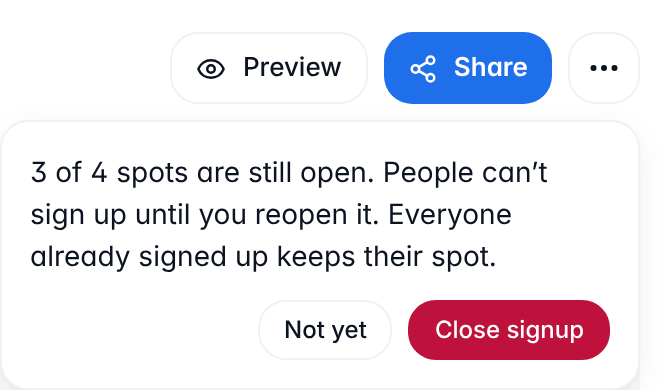
Choose Close signup.
You'll see how many spots are taken or still open, and that nobody can sign up until you reopen it. Choose Close signup again to close it. To leave it open, choose Not yet.
While it's closed
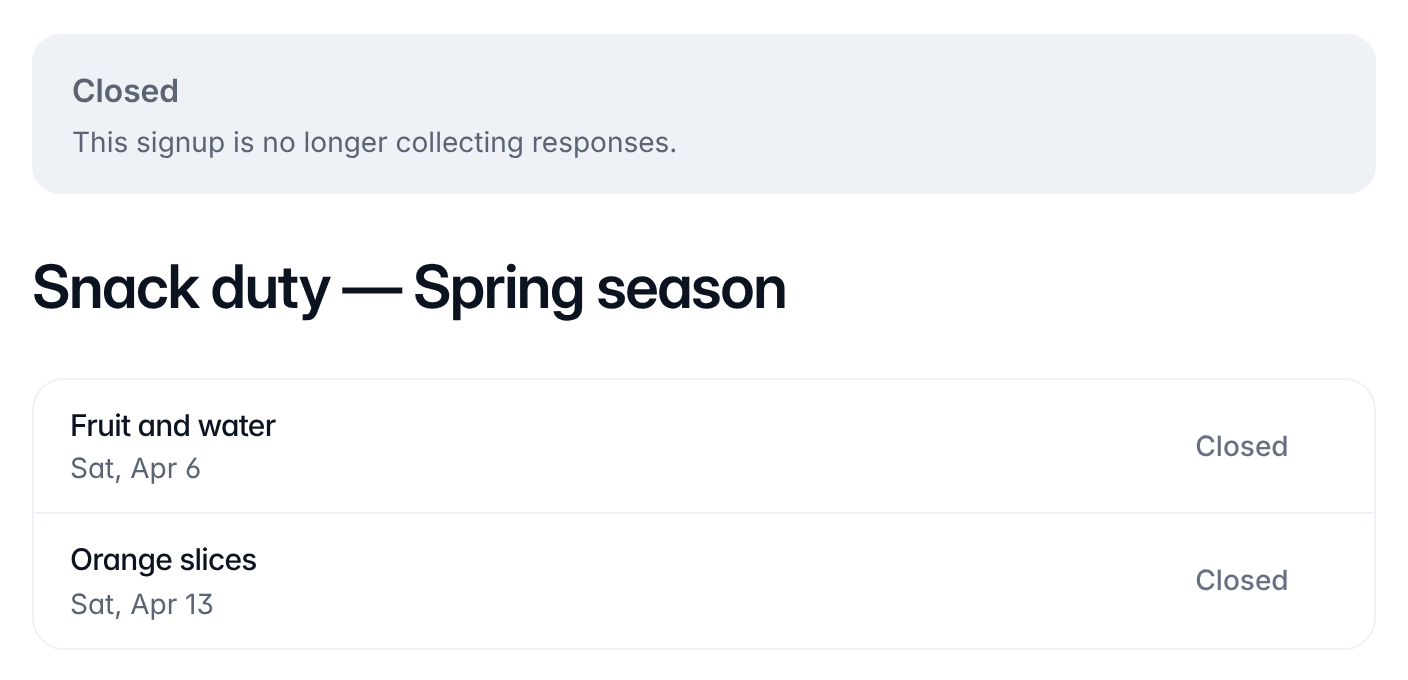
- Your signup is marked closed at the top of the page. Right after you close it, a grey box under its title says Signup closed.
- People who open the link see Closed at the top of the page, and on each slot that isn't full. Nobody new can sign up.
- Everyone already signed up keeps their spot. They can still change their details or cancel with the link they got when they signed up, but they can't take more spots.
- Closing doesn't change reminder emails. Anyone who would have got one still does.
- Nothing is deleted, and the link stays the same.
Reopen your signup
When you reopen it, people can sign up again straight away, at the same link. Reopen signup doesn't ask first, and nobody gets an email about it.
On the Your signups page, choose your signup.
At the top of the page, choose Reopen signup, next to Preview. On a phone, choose the three dots next to your signup's title first.

Your signup is marked open again. You don't need to send the link again, since it hasn't changed.
If an AI assistant gave your signup a closing time that has passed, reopening removes it. A closing time still to come stays, and nobody can sign up after it.
Can't find what you need? Email hello@opensignup.org.